Software version change: Fiscal registrar re-registration
After the cash register software version has been updated, you must submit an application for re-registration of the cash register to the tax office so that a new registration certificate is issued. Re-registration is done in the taxpayer's electronic cabinet.
You need to check the details in form 20-OPP against the details in the registration certificate: they must match, because the name and address of the outlet are pulled automatically from the data in form 20-OPP. If they do not match, form 20-OPP has to be updated (this is done before submitting the re-registration application — that is, form 20-OPP first, then the application). Instructions for filling in form 20-OPP are given below.
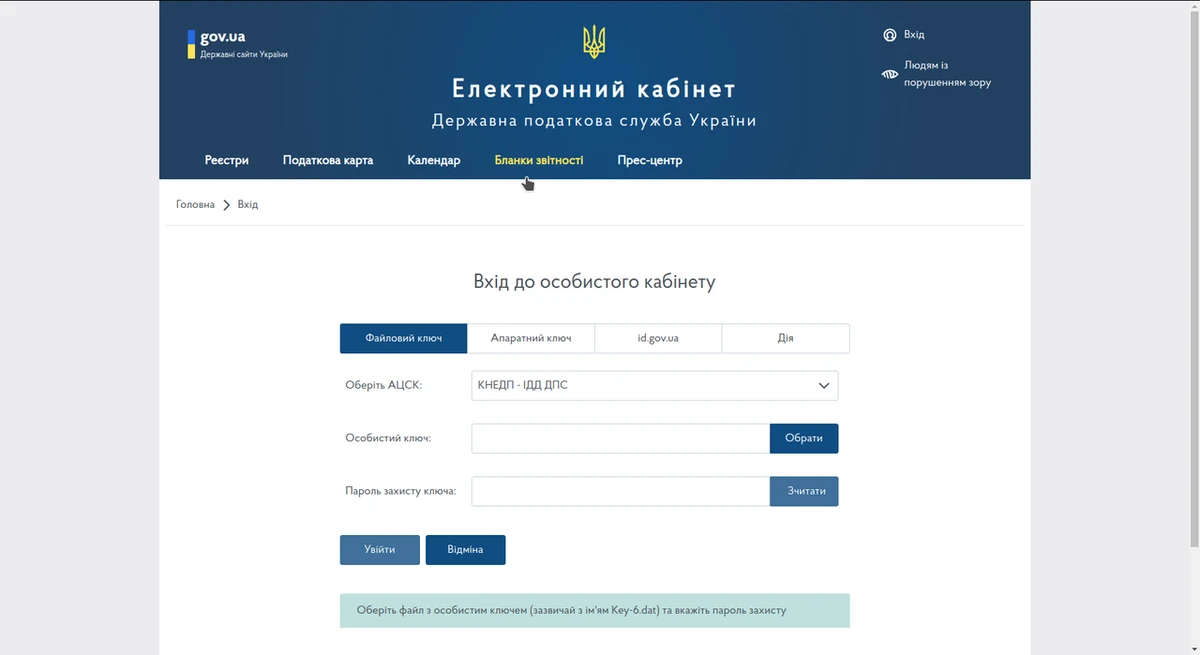
1. Select the certification centre (whoever issued the key), upload the key, enter its password and press the “Read” button — the key should load; then choose “Log in”.
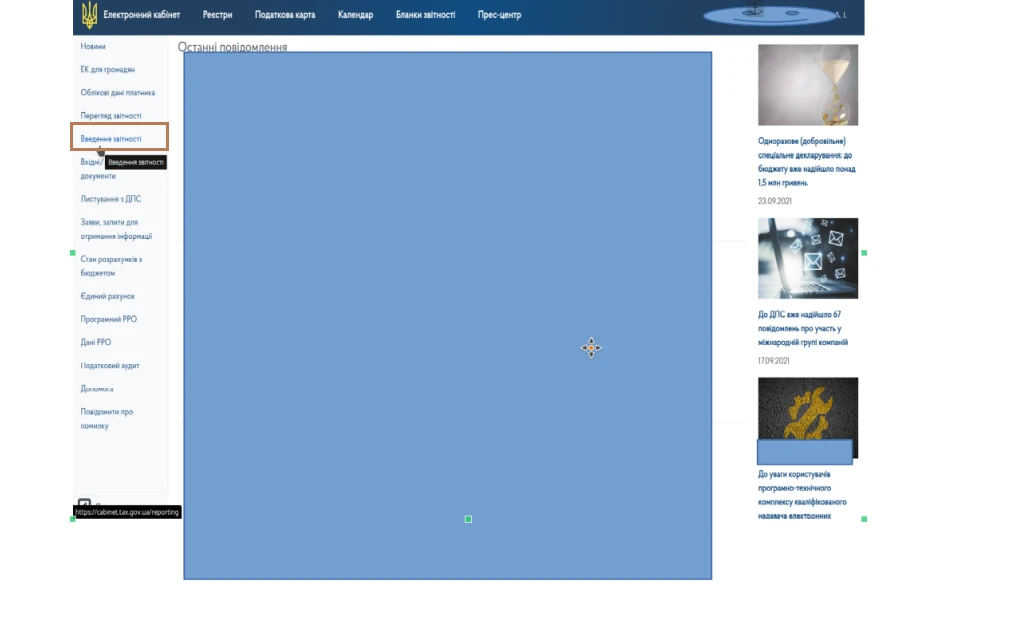
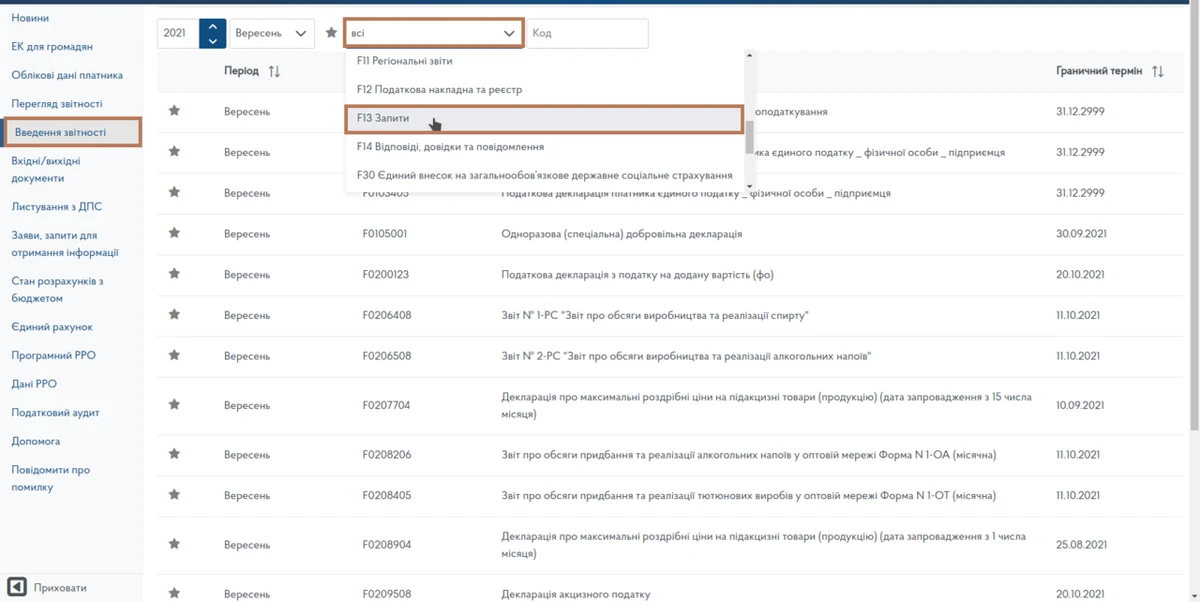
2. After logging into your personal cabinet, choose “Reporting entry” on the left, then “Create”.
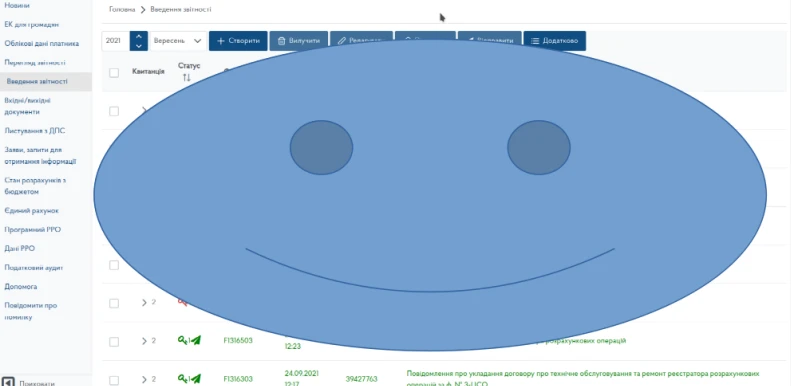
3. In the “Requests” section find and select “Application for registration of a settlement operations registrar, form No. 1-RRO”. The numbering and the names of the forms may differ, so look for the application by name; it is usually on the second page.
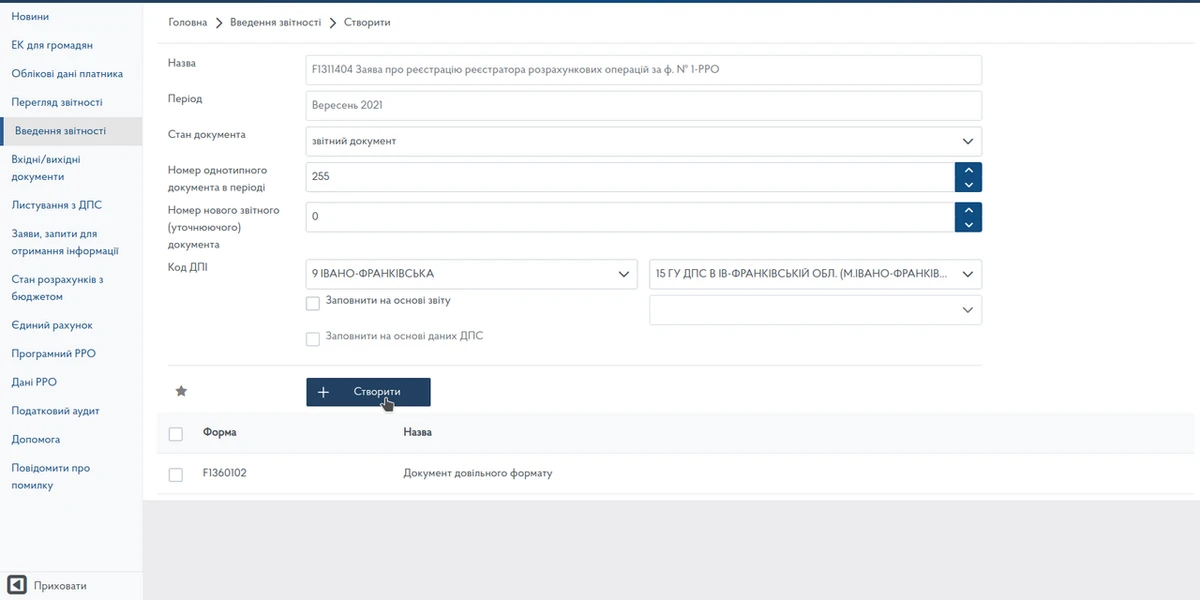
A new page then appears where you have to choose “Create”.
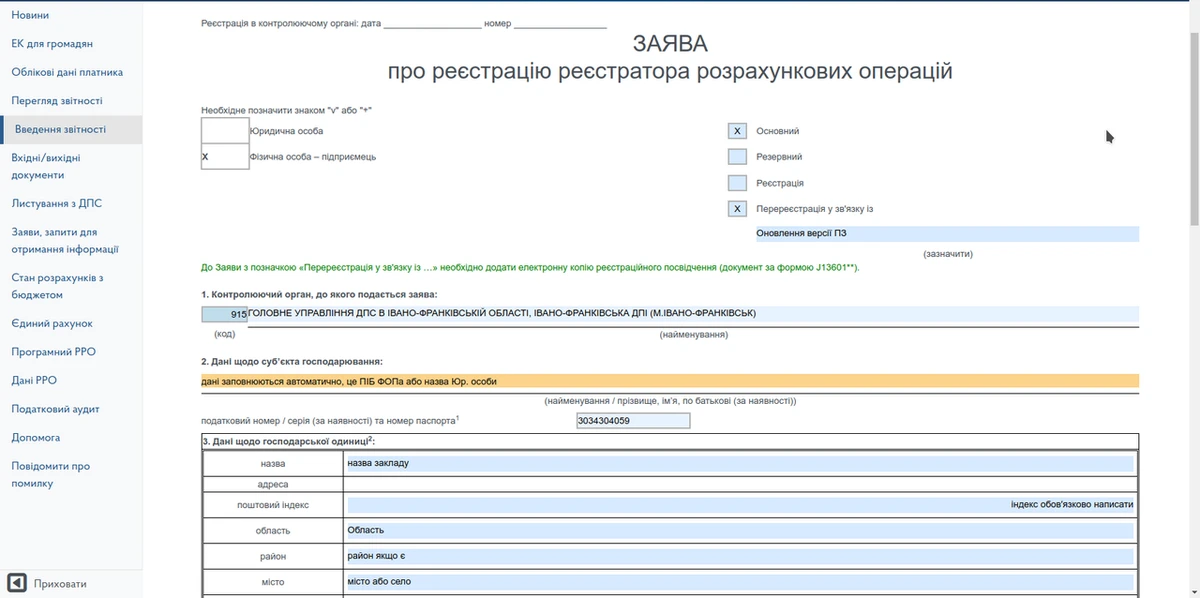
The application form opens for completion. A sample of how to fill it in is given below:
Choose either a sole trader or a legal entity
+ Primary
+ Re-registration due to… (enter the reason “Software version update”).
1. The supervisory body the application is submitted to: filled in automatically.
2. Details of the business entity: filled in automatically.
3. Details of the business unit: you need to check the details in form 20-OPP against the details in the registration certificate — they must match, because the name and address of the outlet are pulled automatically from the data in form 20-OPP. If they do not match, form 20-OPP has to be updated (this is done before submitting the re-registration application — that is, form 20-OPP first, then the application).
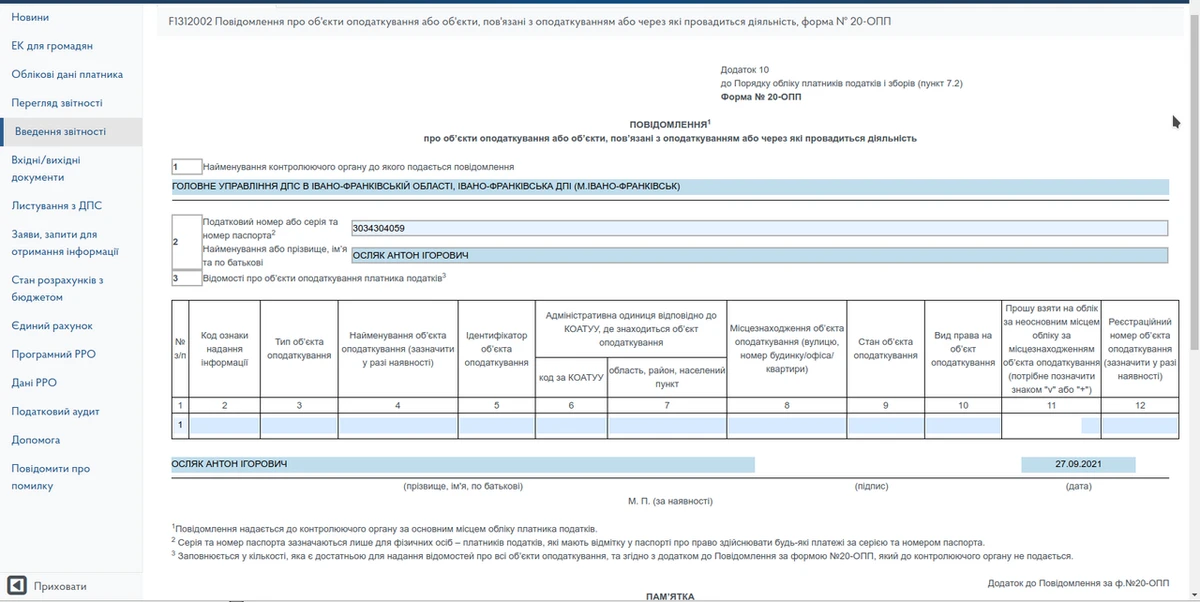
ATTENTION!!! Regarding form 20-OPP (Notification of objects of taxation or objects related to taxation or through which activity is carried out).
Form 20-OPP is in the “Requests” section — Notification of objects of taxation or objects related to taxation or through which activity is carried out, form No. 20-OPP.
Annex to
the Notification
under form No. 20-OPP
GUIDANCE NOTE
for completing section 3 of the Notification of objects of taxation or objects related to taxation or through which activity is carried out
1. When the notification is submitted for the first time, all objects of taxation are listed.
On every subsequent submission, the notification lists a new object of taxation, or an object of taxation in respect of which at least one of the listed changes has occurred.
2. Column 2 «Code of the information submission attribute» has the following values:

When submitting information about a new object of taxation, the value «1 — initial submission of information about objects of taxation» is entered in column 2 «Code of the information submission attribute».
If the details of an object of taxation change — namely, a change of type, name, location, type of right or state of the object of taxation — the updated information about the object concerned is given, and the value «3 — change of details of the object of taxation» is entered in column 2 «Code of the information submission attribute».
If the purpose of the object of taxation changes or the object is repurposed, information about it is given in the notification on two lines: one line states the closure of the object of taxation whose purpose is changing (the value «6 — closure of the object of taxation» is entered in column 2), and the second gives updated information about the object of taxation created or opened on the basis of the closed one (the value «1 — initial submission of information about objects of taxation» is entered in column 2); the identifier of the object of taxation changes in this case.
3. Column 3 «Type of the object of taxation» is completed according to the recommended directory of types of objects of taxation published on the official website of the Central Supervisory Body and displayed on information boards at supervisory bodies.
4. Column 5 «Identifier of the object of taxation» is a numeric value made up of the code of the type of the object of taxation and an internal identifier of 5 characters adopted by the person themselves.
For example:
for a cafe the identifier of the object of taxation may be 24700001, where 247 is the code of the type of the object of taxation according to the recommended directory of types of objects of taxation, and 00001 is the internal identifier adopted by the person;
for a kiosk — 00200010, where 002 is the code of the type of the object of taxation according to the recommended directory of types of objects of taxation, and 00010 is the internal identifier adopted by the person.
5. If the location of the object of taxation changes, the new location of that object is given.
Columns 6–7 «Administrative unit under KOATUU where the object of taxation is located» are completed according to the Classifier of Administrative and Territorial Units published on the official website of the State Statistics Service of Ukraine.
6. Column 9 «State of the object of taxation» states: 1 — under construction / being prepared for commissioning; 2 — in operation; 3 — temporarily out of operation; 5 — unfit for operation; 6 — object alienated / returned to the owner; 7 — change of purpose / repurposing; 8 — leased in; 9 — leased out.
7. Column 10 «Type of right to the object» states: 1 — right of ownership; 2 — right of possession; 3 — right of use (servitude, emphyteusis, superficies); 4 — right of economic management; 5 — right of operational management; 6 — right of permanent use; 7 — right of long-term use or lease; 8 — right of short-term use, lease or hire; 9 — mortgage; 10 — trust management of property.
8. On the basis of the relevant mark placed in column 11, the taxpayer is registered at a non-principal place of registration with the supervisory body at the location of the object of taxation.
9. Column 12 «Registration number of the object of taxation (state if available)» is completed if the object of taxation is registered with the relevant state body and has been given a registration number (for example: a cadastral number for a land plot; a registration number of an immovable property object for immovable property other than a land plot; a vehicle body number for a passenger car; a vehicle chassis number for a lorry or a trailer; a hull registration number for vessels; a registration mark for aircraft, and so on).
Continuing to fill in the “Application for registration of a settlement operations registrar, form No. 1-RRO”
Select the supervisory body for the address of the business unit from the directory by clicking on the orange field. This is the name of the tax office and its code for the location of the business unit.

For example, if it is Ivano-Frankivsk, look for and choose the Ivano-Frankivsk tax office.
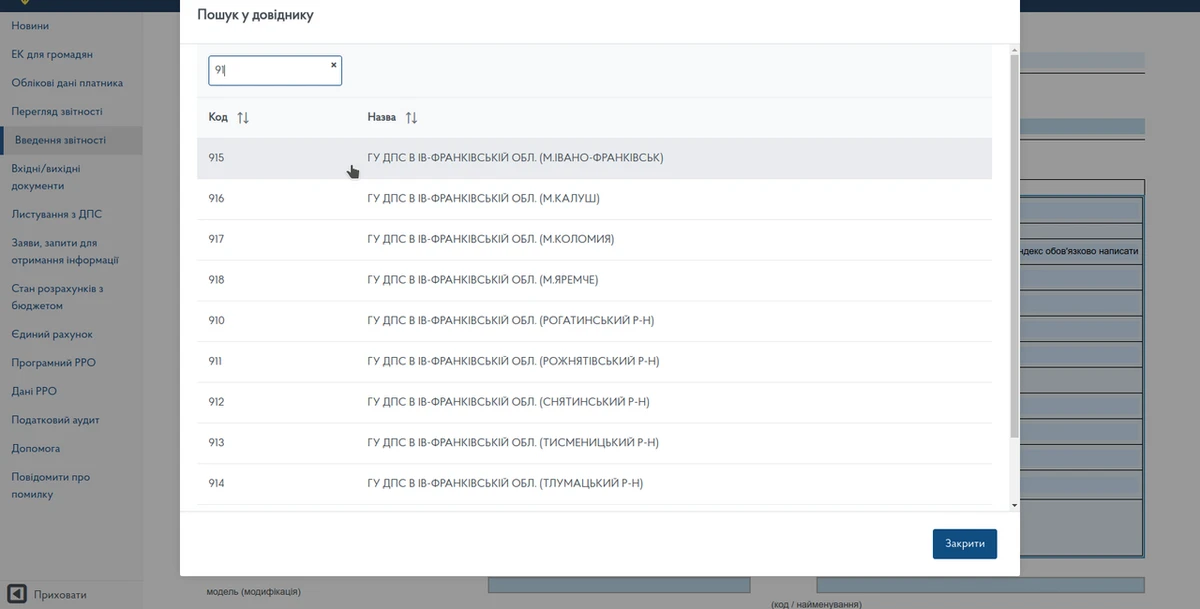
It is important that the tax office code is filled in. If it has not been filled in automatically, enter it manually.

4. Cash register details: (take the data from the sealing certificate — the NEW one issued after the cash register was reflashed).
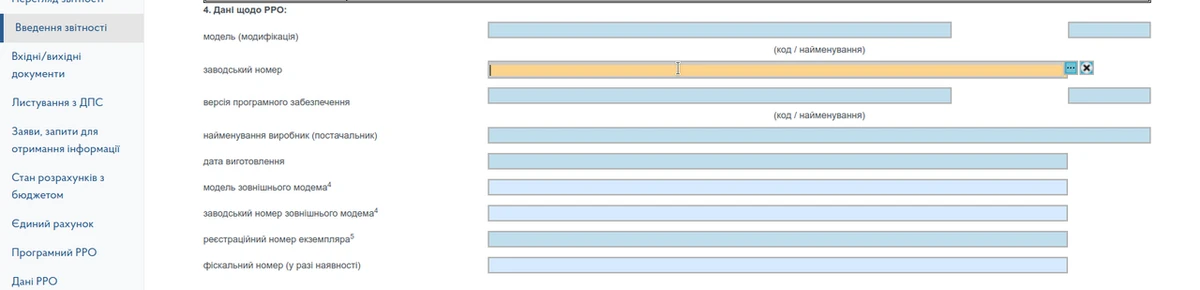
To avoid entering all the data by hand, click on the “Serial number” field, choose “…”, and a directory will open. Enter the serial number of the cash register in the field, for example KP00001964, and the required data will be pulled from the directory. Check that the new software version is there; it must match the data in the cash register sealing certificate.
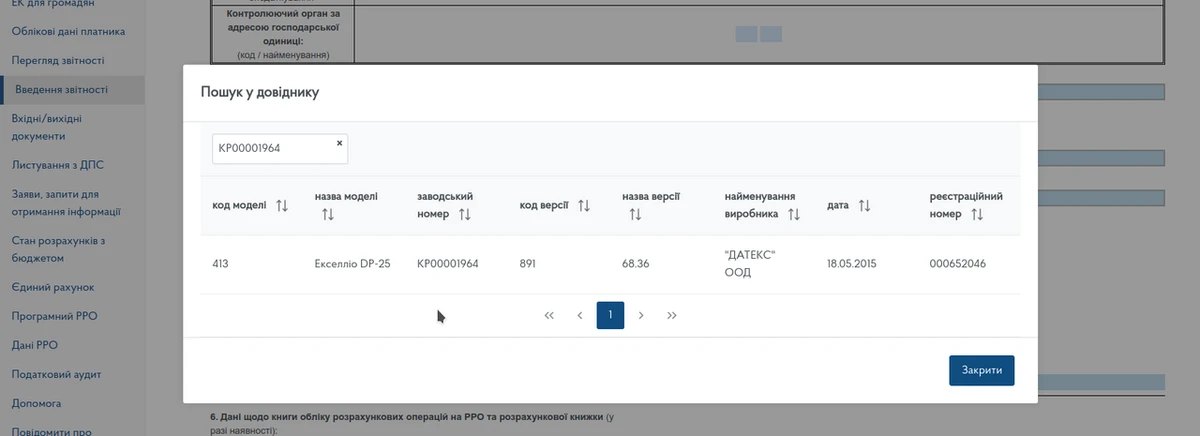
PLEASE NOTE! It may happen that entering the serial number returns “No data found”; in that case change the keyboard input language for the serial number.
If the second receipt is red and says the following: "The document has not been accepted. A cash register unit with the stated model (modification), serial number and software version is not registered. Check that the data has been entered correctly", THAT MEANS THE SERIAL NUMBER OF THE CASH REGISTER HAS BEEN ENTERED INCORRECTLY".
So enter it correctly in advance. The "Model code" does not need to be entered. You can check that it has been entered correctly here
If the serial number has been entered correctly in the "Serial number" field, all its data will be shown straight away; if not, it will say "As of (date) there is no information matching the search criteria".
Keep entering the number until it goes in correctly, then copy it into the application; try different languages, that is Ukrainian or English.
5. Field of application according to the State Register of cash registers:

Choose from the directory: 1. Trade. Public catering. Services.
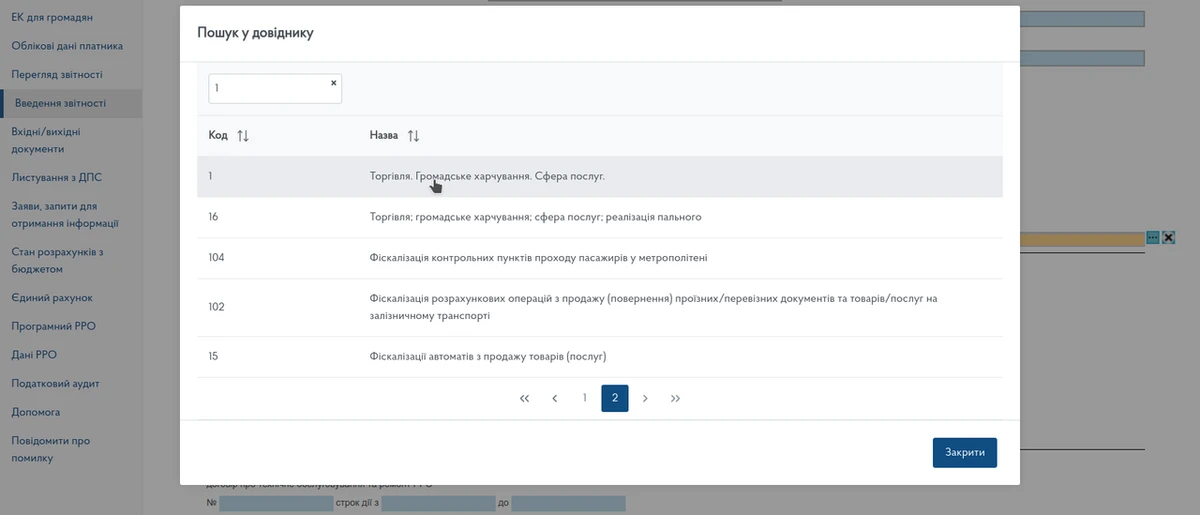
6. Details of the settlement operations record book for the cash register and of the settlement book (if available):
Completed if there is a registered book. Enter the numbers of the book's seals without spaces (the last page of the cash register book).
Number of sheets — 40.

7. Details of the service centre:
Choose from the directory. State the number and the date of the agreement with the service centre. The data comes from the service agreement. The date of the agreement must be current. If there are several cash registers, you have to pick the right agreement from the list, because a new agreement is concluded for each cash register.
8. The settlement operations record book is not registered.
Mark with «v» or «+» if there is no registered cash register record book.
If there is a registered book, this field is left empty.

9. Method of receiving the cash register registration certificate:
(mark what is required with "v" or "+")
Usually the registration certificate arrives in any case after successful re-registration in your INCOMING documents, from where it has to be printed out and filed with the documents.
If you also tick “as an electronic document”, a copy of the certificate will be sent to the email address given.
11. Signatory: put a "v" mark for the entrepreneur or the representative of the business entity.

You must also attach to the application a scanned copy (in PDF, PNG or JPG format) or an electronic version of the registration certificate you already hold. If the original certificate has been lost, you need to write an application in free form asking for a new certificate to be issued because the old one was lost, sign it and stamp it if you have a stamp.
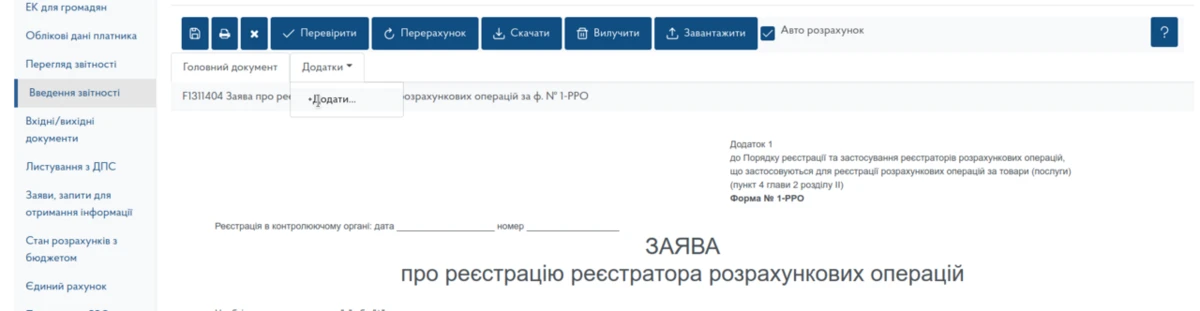
Choose “Add”
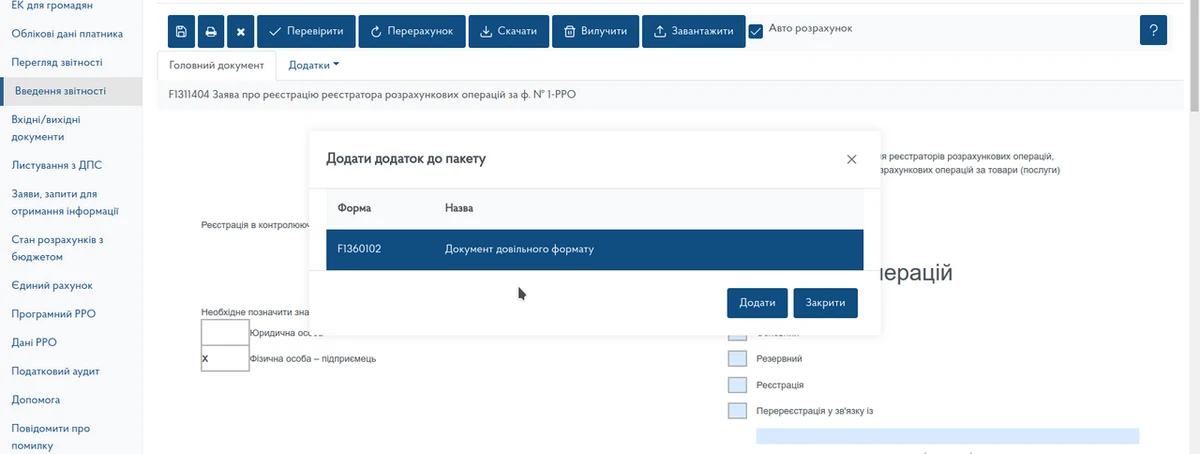
Next you need to fill in the application.
Date of the application: the current date; number: any.
The header of the application is filled in automatically.
Document name — Registration certificate
Document number — the number of the registration certificate (if the certificate has been lost, enter the fiscal number of the cash register)
Document date — the date the application is written
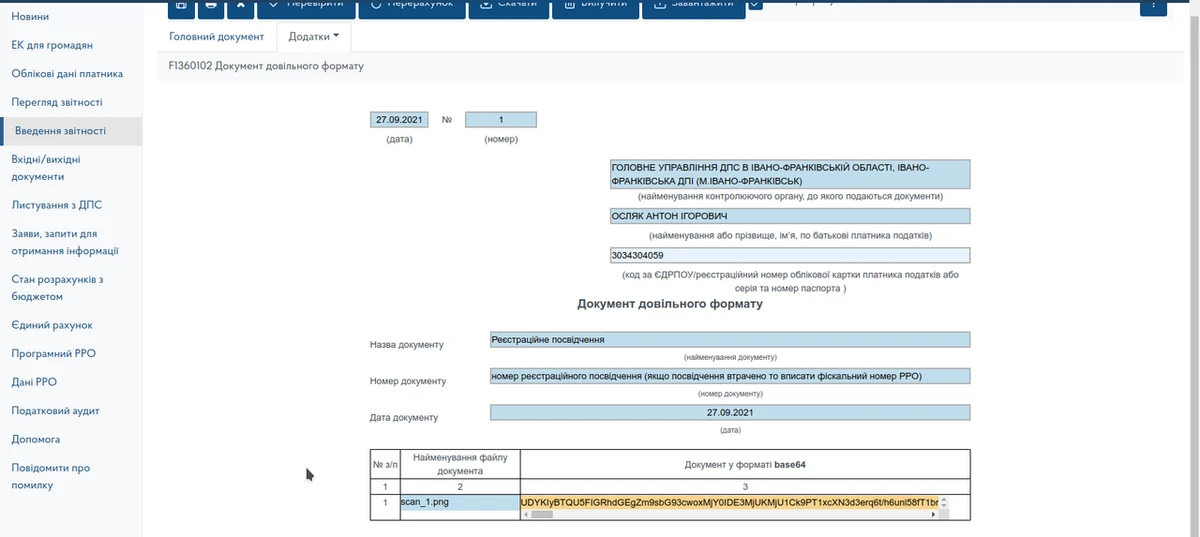
Then you need to go back to the main document.

Check that all the data is written correctly; you can also choose the «Check» item, and if everything is correct, save it, sign it and send the application for processing.
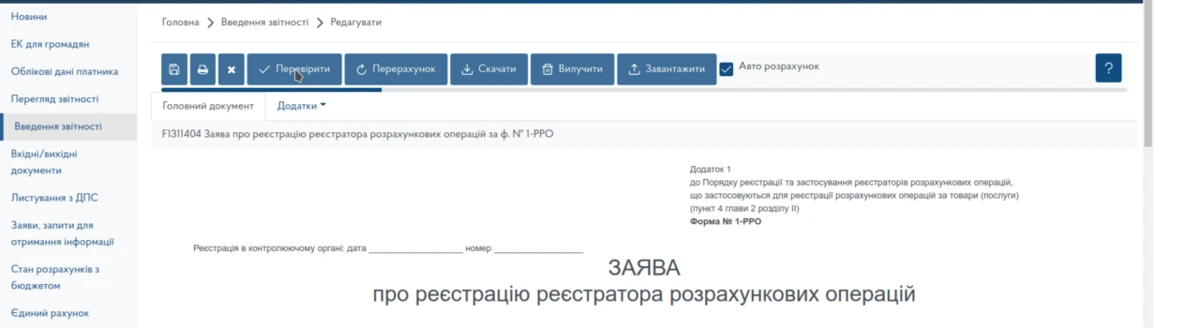
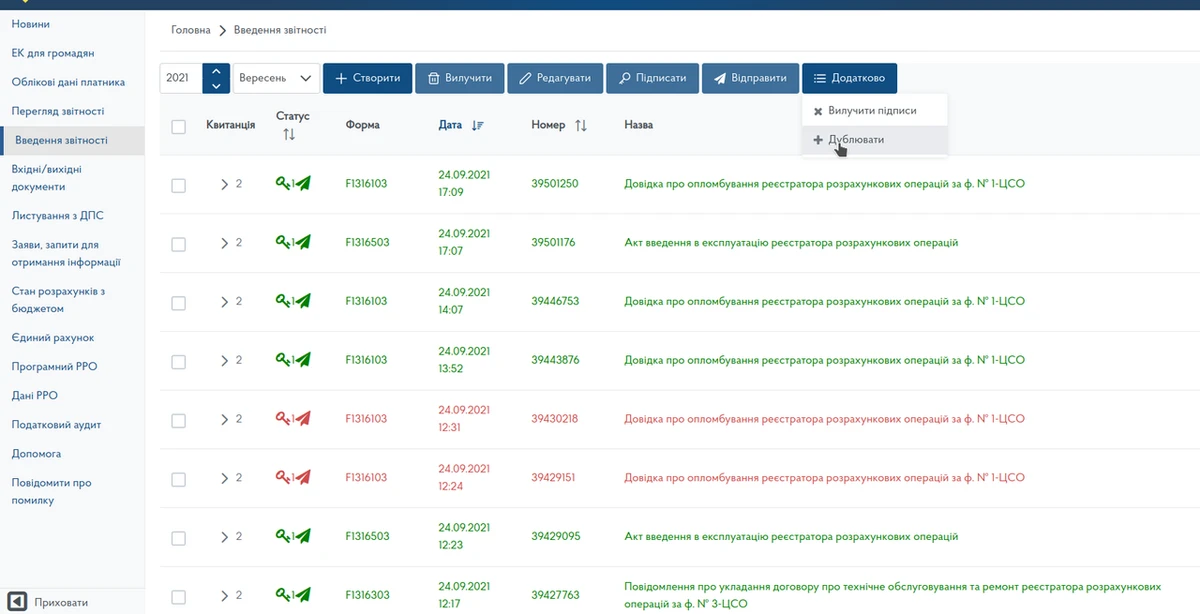
After the application has been processed and the second green receipt appears, a registration certificate with the new cash register software version will be issued.
If the second receipt is green, it means it has not been accepted for consideration and you need to check it once more and send it again.
You can send the application again by duplicating it: